Using the Defender Manager dashboard
How to easily review Defender status for all tenants
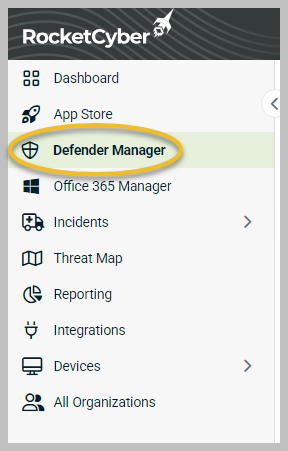
When the Defender Manager app is enabled, an additional navigation item, Defender Manager, is added to the left menu. To use the Defender Manager dashboard, follow these steps:
-
In the left menu, click Defender Manager.
-
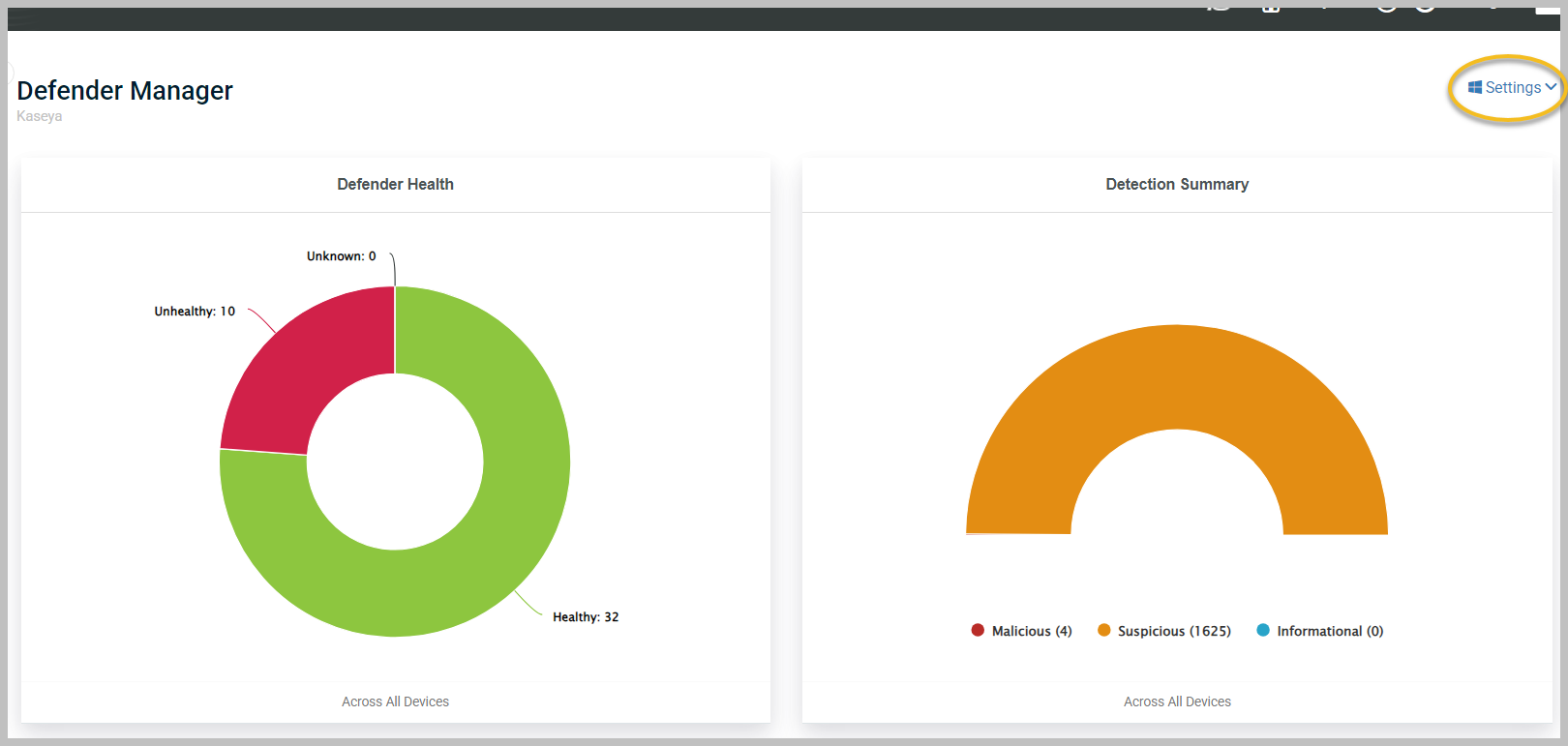
This dashboard contains a couple of useful charts:
-
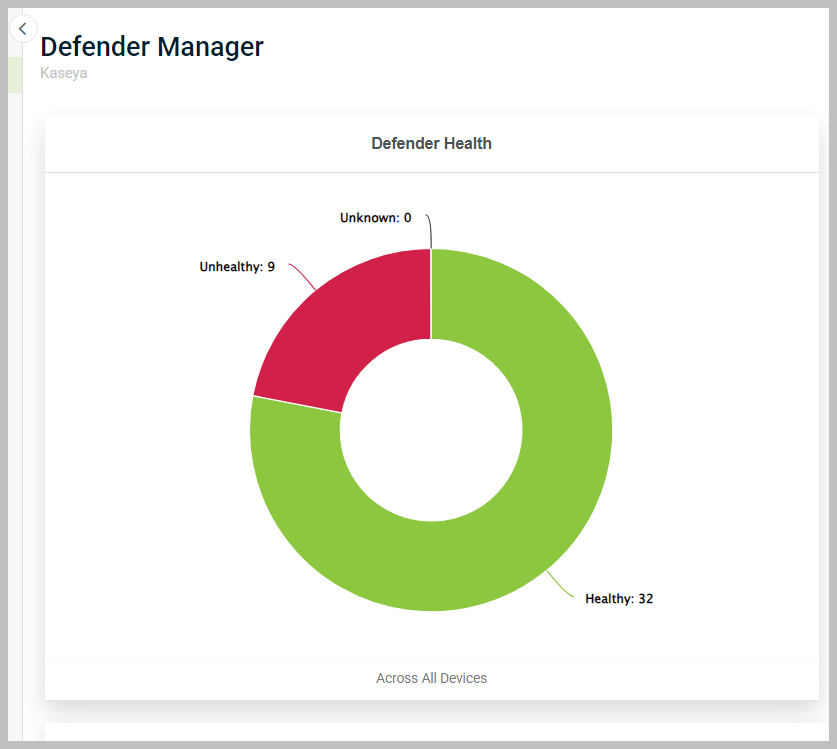
Defender Health: This chart displays the health status of Defender on your managed devices.
-
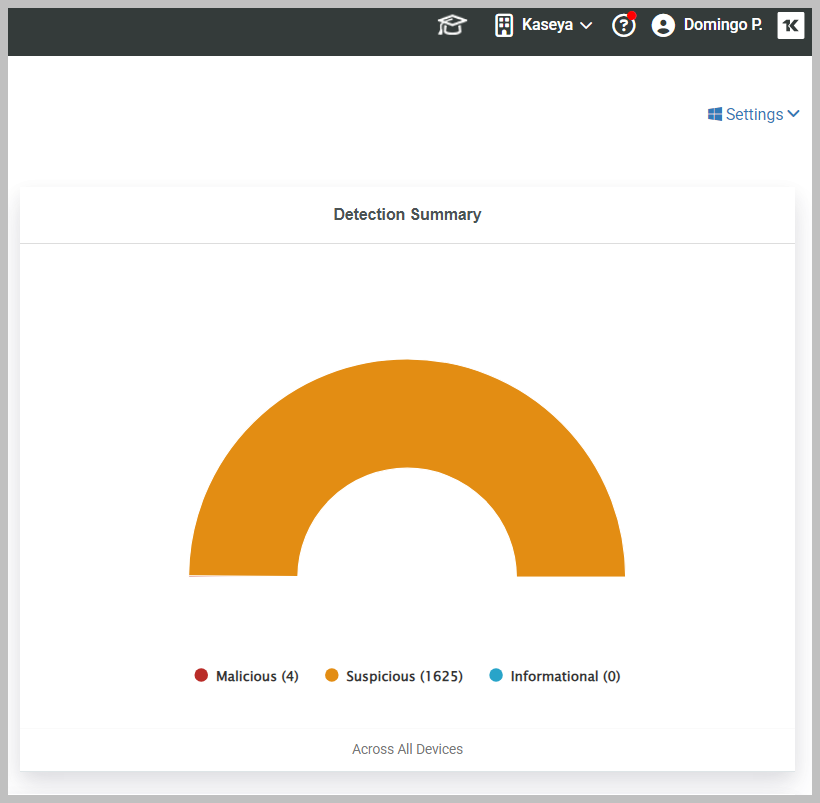
Detection Summary: This chart shows the types of detections categorized as Malicious, Suspicious, or Informational.
-
-
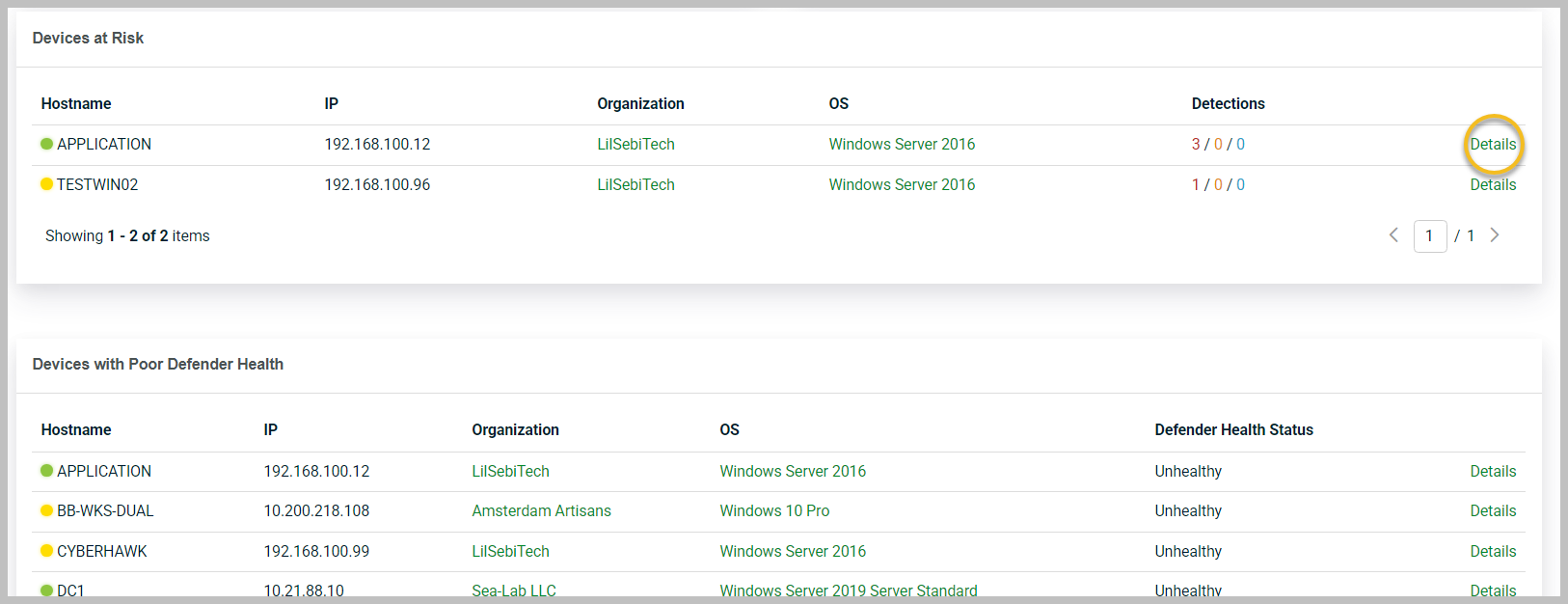
In the lower section of the dashboard, you will see a detailed list of the devices along with summary information. You can filter the list by device name by entering a full or partial hostname in the filter box. For more details on a specific device, click the Details link in the right-hand column of the table.
-
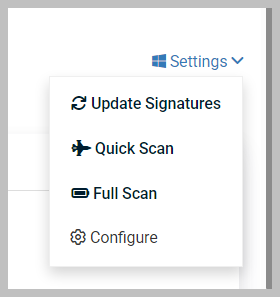
In the upper-right corner of the Defender Manager dashboard, you will find the Settings menu.
-
From this menu, you can perform scans and signature updates for all devices in the current context. You can also select the Configure option to modify the configuration settings of Defender.